

Introduction
AI photo editing has changed the way people improve portraits, restore old photographs, create social media content and prepare commercial images. Instead of adjusting dozens of sliders manually, you can upload a picture to ChatGPT and explain the desired change in ordinary language.
The quality of the result depends largely on the instructions you provide. A prompt such as “make this photo better” leaves too much room for interpretation. A more useful prompt explains the exact edit, identifies the relevant part of the image, describes the preferred style and states which details must remain unchanged.
This guide explains how to use ChatGPT for photo editing and includes 100 original prompts for portraits, professional headshots, background changes, restoration, clothing edits, product photography, family images, wedding photographs and creative transformations.
What Is a ChatGPT Photo Editing Prompt?
A ChatGPT photo editing prompt is a natural-language instruction that tells the image tool how to modify an uploaded photograph. Depending on your request, ChatGPT may help you:
- Remove unwanted objects or people.
- Replace or blur a background.
- Improve lighting and colour.
- Retouch a portrait.
- Restore a damaged photograph.
- Change clothing, hair or accessories.
- Prepare images for websites and social media.
- Create artistic versions of real photographs.
- Improve product and e-commerce images.
- Combine visual elements from reference images.
The strongest prompts do not only explain what to change. They also describe what the AI should protect. For example, a portrait-editing prompt can ask ChatGPT to preserve the person’s facial structure, expression, skin tone, hairstyle and body proportions. ChatGPT allows users to upload an existing image and describe the requested edit. You can also continue refining the result with additional instructions rather than starting a new conversation for every adjustment.
Explore Entri’s free AI tools course now!
How to Edit a Photo with ChatGPT
1. Choose a suitable photograph
Start with the clearest version of the image available. A well-lit, high-resolution photograph generally gives the editing tool more visual information to work with. Avoid using:
- Heavily compressed screenshots.
- Extremely dark or blurry images.
- Photographs covered by large filters.
- Images with important faces partly hidden.
- Pictures that contain sensitive personal information.
2. Upload the image
Open ChatGPT, attach the photograph and explain what you want to change. If the interface offers an image-selection or drawing option, use it to identify the area that needs editing.
3. State one main objective
Begin with the most important change. For example:
“Replace the background with a softly blurred office.”
This is usually more effective than asking for background replacement, facial retouching, wardrobe changes and colour correction in one unclear sentence.
4. Add preservation instructions
Tell ChatGPT what must remain unchanged. For a portrait, this could include:
“Preserve the person’s identity, facial features, expression, hairstyle, clothing and body proportions.”
For a product photograph, you could write:
“Keep the product’s shape, logo, packaging text and original colour accurate.”
5. Describe the visual treatment
Add details about lighting, mood, colour and composition. Examples include:
- Soft natural daylight.
- Neutral studio lighting.
- Warm evening light.
- Subtle film grain.
- Realistic skin texture.
- Clean white background.
- Shallow depth of field.
- Vertical composition for social media.
6. Refine the result gradually
After reviewing the output, request one correction at a time. For example:
“Keep the background and clothing unchanged, but reduce the skin smoothing and restore a more natural texture.”
OpenAI’s image-generation guidance recommends clear instructions and iterative refinement when developing a visual result.
The Best Prompt Formula
A practical photo-editing prompt can follow this five-part structure:
- Image context: Identify the photograph or subject.
- Requested edit: Explain precisely what should change.
- Location: Identify where the change should occur.
- Visual direction: Add lighting, colour, mood or composition details.
- Preservation instruction: State what must remain unchanged.
Reusable template
“Edit this [type of image] by [specific change] in the [location]. Use [lighting, colour or style]. Preserve [important identity, object or composition details]. Make the final image [realistic, professional, cinematic or suitable for a specific platform].”
Example
“Edit this portrait by replacing the cluttered indoor background with a softly blurred modern office. Use neutral daylight and realistic shadows. Preserve the person’s exact facial features, hairstyle, clothing, expression and body proportions. Make the final image suitable for a professional profile.”
100 ChatGPT Prompts for Photo Editing
Replace the words in brackets with your own details. For important photographs, review the face, hands, text, logos, jewellery and small objects carefully after every edit.
Portrait Retouching Prompts
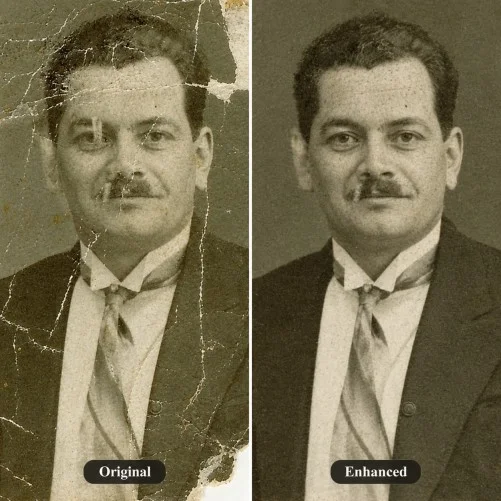
1. Natural skin retouching
“Retouch this portrait gently by reducing temporary blemishes and uneven tones. Keep visible pores, natural texture, freckles, permanent marks and the original face shape unchanged.”
Created with ChatGPT
2. Reduce under-eye shadows
“Soften the dark circles and puffiness under the eyes without removing natural expression lines or changing the person’s age and identity.”
3. Correct red-eye
“Remove the red-eye effect and restore a natural appearance to the eyes. Keep the original eye colour, shape and direction of the gaze unchanged.”
4. Subtle teeth whitening
“Whiten the teeth slightly and naturally by no more than two shades. Preserve the original smile, lips, gums and facial expression.”
5. Reduce facial shine
“Reduce excessive shine on the forehead, nose and cheeks while retaining realistic skin texture and natural highlights.”
6. Clean up flyaway hair
“Remove only the distracting flyaway hairs around the head and shoulders. Preserve the hairstyle, hairline, texture and hair colour.”
7. Improve facial lighting
“Balance the lighting across the face, soften harsh shadows and recover small details without changing the person’s facial features or expression.”
8. Restore natural skin colour
“Correct the colour cast on the face and restore a natural, even skin tone. Do not lighten, darken or reshape the person’s appearance.”
9. Add subtle makeup
“Add understated makeup with soft eyeliner, a natural blush and a neutral lip colour. Keep the face shape, features, expression and skin texture realistic.”
10. Preserve an authentic appearance
“Polish this portrait lightly while keeping wrinkles, freckles, age marks and natural facial details visible. Do not make the person look younger or overly retouched.”
Professional Headshot Prompts
11. LinkedIn headshot
“Turn this photograph into a professional LinkedIn headshot with a clean neutral background, balanced lighting and a shoulders-up composition. Preserve the person’s face, hairstyle, expression and natural skin texture.”
12. Resume photograph
“Prepare this photo for a professional resume profile. Correct the white balance, improve facial clarity and remove background distractions without creating an artificial or airbrushed appearance.”
13. Studio headshot
“Replace the background with a soft light-grey studio backdrop and apply even professional lighting. Keep the subject’s facial features, clothing, pose and expression unchanged.”
14. Business attire
“Replace the current outfit with a tailored navy blazer and white shirt. Preserve the person’s face, hairstyle, pose, body proportions and realistic clothing folds.”
15. Corporate team photograph
“Edit this image to match a consistent company team-photo style using the same light-grey background, crop, lighting and colour balance. Keep the person’s identity unchanged.”
16. Conference badge image
“Create a clean head-and-shoulders portrait suitable for a conference badge. Use a plain background, sharp facial focus and neutral professional lighting.”
17. Warm professional expression
“Adjust the expression to a subtle, natural closed-mouth smile suitable for a professional profile. Preserve the person’s facial structure, eyes and identity.”
18. Profile photo crop
“Recompose this image as a square professional profile photograph. Keep the face centred, leave comfortable space above the head and avoid cutting off the shoulders.”
19. Office background
“Replace the current background with a softly blurred contemporary office. Match the office lighting to the subject and preserve the person’s face, clothing and pose.”
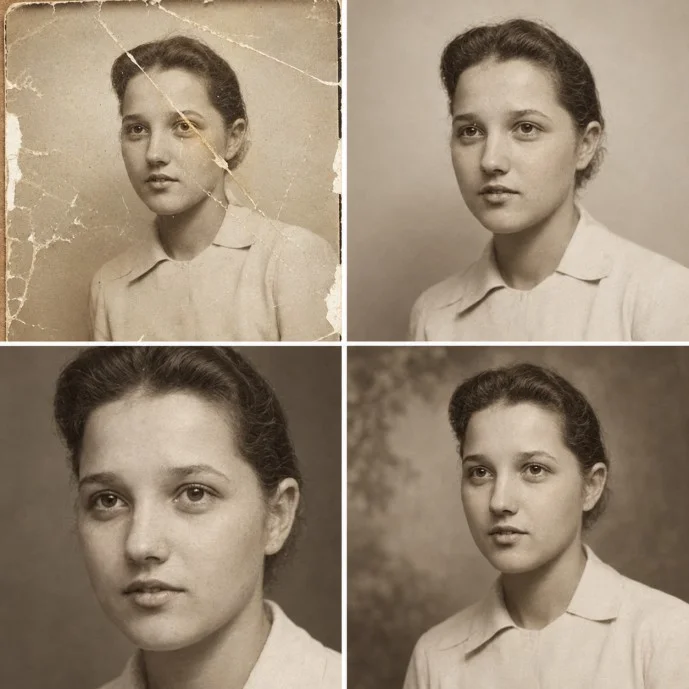
20. Headshot variation set
“Using this photograph as the reference, create three professional headshot variations with slightly different crops and backgrounds. Keep the face, hairstyle, clothing and identity consistent in every version.”
Created with ChatGPT
Background Editing Prompts
21. Remove the background
“Remove the entire background and place the subject on a transparent background. Create clean edges around the hair and clothing, with no visible halo or leftover background colour.”
22. Replace with white
“Replace the background with a pure white studio background. Keep the subject’s outline sharp, natural and correctly lit.”
23. Add a beach
“Replace the background with a realistic beach at sunset. Match the warm light and shadow direction to the subject while preserving the subject’s face, clothing and pose.”
24. Add a garden
“Move the subject into a peaceful garden with soft greenery and natural daylight. Preserve the subject’s identity, clothing, pose and body proportions.”
25. Add a city scene
“Replace the background with a modern city street at night, using subtle bokeh lights. Match the colour temperature and reflections naturally.”
26. Create an office setting
“Replace the background with a bright modern office featuring softly blurred desks and windows. Keep the subject sharp and maintain realistic lighting.”
27. Blur the background
“Apply a realistic shallow-depth-of-field effect to the background while keeping the main subject in sharp focus. Preserve natural edges around hair and clothing.”
28. Remove background strangers
“Remove all unrelated people in the background and reconstruct the missing areas naturally. Do not change the main subject, composition or lighting.”
29. Change the weather
“Change the cloudy sky to a bright sky with soft clouds. Adjust the scene’s highlights and shadows so the new weather appears realistic.”
30. Extend the image
“Extend the image naturally on both sides to create a wider composition. Continue the existing background without stretching, duplicating or changing the main subject.”
Object Removal Prompts
31. Remove background clutter
“Remove the bins, cables, papers and unrelated objects from the background. Rebuild the area using the surrounding colours, textures and perspective.”
32. Remove one person
“Remove the person wearing [describe clothing or position] from the left side of the photograph. Reconstruct the background naturally while leaving the main subject untouched.”
33. Remove a power line
“Remove the power lines and poles from the sky. Preserve the clouds, lighting and surrounding buildings without leaving visible artefacts.”
34. Remove a sign
“Remove the sign in the background and reconstruct the wall behind it using matching texture, shadows and perspective.”
35. Remove a traffic cone
“Remove the traffic cone in the foreground and fill the space naturally using the surrounding road and pavement.”
36. Remove window glare
“Reduce the glare and reflections on the glass while keeping the objects visible behind it realistic and correctly aligned.”
37. Remove a watermark from owned content
“Remove the visible date stamp from this photograph and reconstruct the small background area naturally. I own the photograph and have permission to edit it.”
38. Clean up a workspace
“Remove loose papers, unnecessary cables and small clutter from the desk while keeping the laptop, monitor and important objects in place.”
39. Remove a pet leash
“Remove the leash from the dog and reconstruct the fur naturally where the leash was visible. Preserve the dog’s body, pose and expression.”
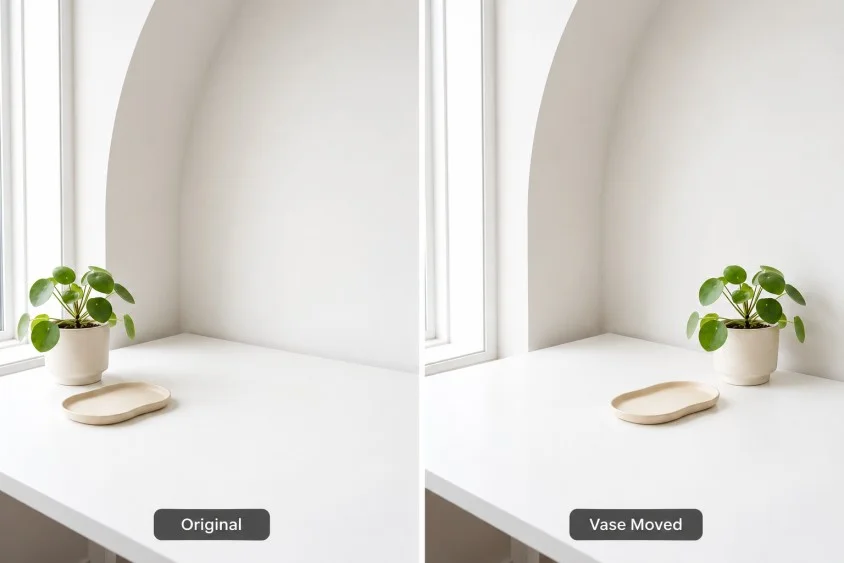
40. Move an object
“Move the vase from the left side of the table to the right side. Preserve its shape, scale and design, and recreate the correct shadow in its new position.”
Created with ChatGPT
Lighting and Colour Prompts
41. Improve exposure
“Correct the exposure by gently lifting dark areas and recovering bright areas. Preserve realistic contrast and avoid making the image look flat.”
42. Golden-hour edit
“Give this photograph the warm appearance of golden-hour light with soft highlights and long gentle shadows. Keep the composition and subject unchanged.”
43. Natural daylight
“Replace the artificial colour cast with clean natural daylight. Preserve accurate skin tones and realistic shadows.”
44. Moody cinematic grade
“Apply a restrained cinematic colour grade with deeper shadows, controlled highlights and rich but realistic colours. Preserve the subject’s identity and facial details.”
45. Black-and-white conversion
“Convert this photograph into a high-quality black-and-white image with detailed mid-tones, natural contrast and sharp facial features.”
46. Vintage film appearance
“Apply a subtle vintage film treatment with gentle grain, slightly faded colours and warm highlights. Keep the image realistic rather than heavily stylised.”
47. Soften harsh flash
“Reduce the harsh appearance of direct flash by balancing the highlights and shadows. Preserve the original setting, face and clothing.”
48. Neon lighting
“Add soft blue and magenta neon lighting to the scene while preserving the subject’s pose, face and clothing. Keep the effect photographic rather than artificial.”
49. Match two photographs
“Adjust the colour temperature, exposure and contrast of this photograph so it matches the attached reference image. Preserve the subject and composition.”
50. Recover an overexposed sky
“Restore detail in the overexposed sky without darkening the subject. Maintain realistic clouds, light direction and overall colour balance.”
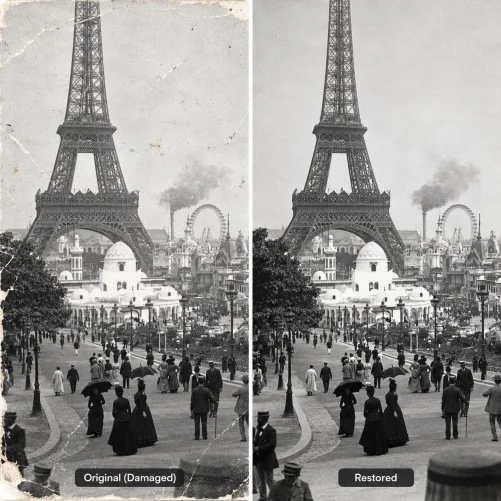
Restoration Prompts
51. Remove scratches
“Restore this old photograph by removing scratches, dust and small marks. Preserve the original faces, expressions, clothing, composition and historical character.”
52. Repair tears
“Repair the tears and missing sections in this photograph by reconstructing the damaged areas to match the surrounding texture and perspective.”
53. Restore faded colours
“Restore the faded colours in this old photo with moderate saturation. Keep the original mood and avoid introducing modern-looking colours.”
54. Colourise a monochrome photo
“Colourise this black-and-white photograph using believable skin tones and period-appropriate colours. Preserve the original lighting, expressions and facial identity.”
55. Repair water damage
“Remove water stains and discolouration from this photograph while retaining the details of the people, clothing and background.”
56. Reduce yellowing
“Correct the yellowing caused by age and restore neutral, natural tones without removing important details from the original photograph.”
57. Improve a blurry family photo
“Improve the clarity of this family photograph while keeping faces natural. Do not invent exaggerated details or change anyone’s identity.”
58. Prepare an old photo for printing
“Clean, straighten and enhance this old photograph for printing. Preserve the original composition and avoid excessive sharpening or artificial textures.”
59. Restore a scanned album image
“Clean this scanned album photograph by removing dust, scan lines and uneven exposure. Keep the original colours, expressions and framing.”
60. Preserve the historical feel
“Repair the visible damage in this photograph but retain its period appearance, original contrast and natural imperfections.”
Created with ChatGPT
Clothing, Hair and Accessories Prompts
61. Change clothing colour
“Change the shirt from [current colour] to [new colour]. Preserve the fabric texture, folds, fit, lighting and body proportions.”
62. Replace casual clothing
“Replace the casual outfit with a neat formal outfit suitable for a professional photograph. Keep the face, hairstyle, pose and lighting unchanged.”
63. Add traditional clothing
“Change the outfit to an elegant traditional Indian garment with realistic fabric folds and details. Preserve the person’s face, hairstyle, expression and body proportions.”
64. Change hairstyle
“Change the hairstyle to [describe style]. Keep the face, hairline, skin tone, expression and identity exactly the same.”
65. Change hair colour
“Change the hair colour to natural chestnut brown while preserving the hairstyle, length, texture and facial features.”
66. Add jewellery
“Add a simple gold necklace and small earrings. Match the existing lighting and shadows, and keep all other parts of the photograph unchanged.”
67. Remove glasses
“Remove the glasses and naturally reconstruct the area around the eyes. Preserve the original eye shape, gaze and facial structure.”
68. Add sunglasses
“Add realistic sunglasses that fit the person’s face naturally. Preserve the facial proportions, hairstyle, expression and lighting.”
69. Add a beard
“Add a short, neatly trimmed beard that matches the person’s natural hair colour. Preserve the jawline, face shape and expression.”
70. Create a winter outfit
“Replace the current clothing with a warm winter coat, scarf and boots. Keep the person’s face, pose and body proportions unchanged.”
Product and Commercial Prompts
71. White-background product shot
“Place this product on a clean white background with even studio lighting and a soft grounding shadow. Preserve the product’s exact shape, colour, logo and packaging details.”
72. Lifestyle product scene
“Place the product in a realistic lifestyle setting on a wooden table beside a softly lit window. Keep the product’s size, design and colour accurate.”
73. Remove product dust
“Remove dust, fingerprints and minor surface marks from the product. Do not change its shape, texture, branding or original colour.”
74. E-commerce listing image
“Prepare this photograph for an online store listing with a clean background, accurate colours, sharp details and a subtle natural shadow.”
75. Product colour correction
“Correct the colour so the product appears in its true [specific colour]. Preserve the material, texture, shape and packaging details.”
76. Packaging mock-up
“Place this design on a realistic product box mock-up shown at a slight angle. Preserve the artwork, spelling, logo and colour arrangement exactly.”
77. Product social-media crop
“Create square and vertical versions of this product image for social media. Keep the product centred, sharp and fully visible in both formats.”
78. Add a scale reference
“Show the product being held by a realistic hand to communicate its size. Match the hand, product and original scene using consistent lighting and shadows.”
79. Jewellery retouching
“Retouch this jewellery photograph by removing dust and improving clarity in the stones. Preserve realistic metal reflections and avoid making the jewellery look unnaturally bright.”
80. Before-and-after layout
“Create a clean side-by-side comparison using the original image and the edited version. Add a simple dividing line and do not cover either photograph.”
Family, Group and Wedding Prompts
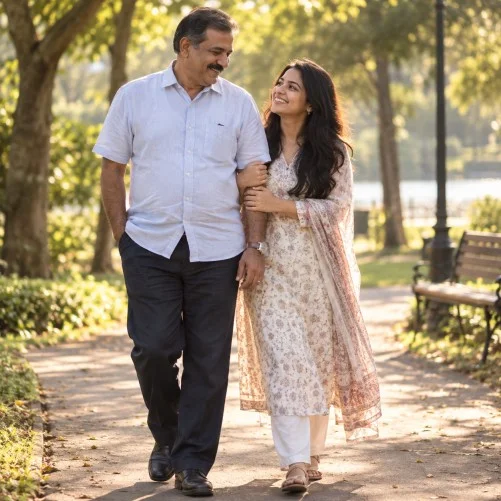
81. Father and daughter portrait
“Create a warm, realistic portrait of a father and daughter walking together in a sunlit park. Preserve their facial features, ages, expressions, clothing and natural body proportions.”
Created with ChatGPT
82. Father and daughter background edit
“Replace the background of this father-and-daughter photograph with a softly lit garden. Keep both people’s faces, hairstyles, clothing, poses and expressions unchanged.”
83. Fix closed eyes in a group photo
“Correct the closed eyes of the person on the right using their natural facial features. Keep the rest of the group, lighting and composition unchanged.”
84. Combine two family photographs
“Combine the best expressions from these two photographs of the same family into one natural group image. Preserve everyone’s identity, scale, pose and lighting.”
85. Add a missing family member
“Add the person from the reference image to the family photograph beside [identify person]. Match their scale, lighting, perspective and shadow direction.”
86. Family reunion background
“Replace the background with a peaceful outdoor garden during late afternoon. Preserve every family member’s face, clothing, pose and expression.”
87. Wedding portrait
“Transform this couple’s photograph into an elegant wedding portrait with warm evening light, soft floral decorations and a romantic background. Preserve both faces, clothing, jewellery and expressions.”
88. Wedding lighting correction
“Improve the lighting in this wedding photograph, reduce distracting background elements and enhance the flowers gently. Keep the couple’s faces, wedding clothes and pose unchanged.”
89. Marriage invitation image
“Create a graceful vertical marriage-invitation image from this couple’s photograph. Leave clear space for invitation text, use soft floral details and preserve both people’s identities.”
90. Anniversary photograph
“Give this couple’s photograph a warm anniversary-themed appearance with subtle golden lighting and elegant decorative details. Keep their faces, expressions and clothing realistic.”
Creative Transformation Prompts
91. Watercolour portrait
“Transform this photograph into a detailed watercolour painting with visible paper texture and soft brushwork. Keep the person recognisable and preserve the main expression.”
92. Graphite sketch
“Convert this photograph into a realistic graphite pencil sketch with fine shading and natural line variation. Preserve the facial structure and composition.”
93. Oil painting
“Turn this portrait into a classical oil painting with rich but natural colours and visible brush texture. Keep the subject recognisable and preserve the original pose.”
94. Comic-book style
“Transform this photograph into a comic-book illustration with bold outlines, controlled shading and vivid colours. Preserve the subject’s main facial features.”
95. Minimalist line art
“Convert this portrait into a clean minimalist line drawing using a limited number of graceful lines. Keep the person recognisable.”
96. Polaroid effect
“Give this photograph a subtle instant-film appearance with a soft warm cast, gentle grain, slightly faded colours and a clean white border.”
97. Retro digital-camera effect
“Apply a nostalgic early-digital-camera style with direct flash, mild grain, slightly strong contrast and realistic skin tones. Keep the face and expression unchanged.”
98. Fantasy environment
“Place the subject in a realistic fantasy forest with soft mist, glowing plants and warm atmospheric light. Preserve the subject’s face, pose and clothing.”
99. Cinematic poster
“Transform this image into a cinematic poster with dramatic lighting, atmospheric depth and clear negative space for a title. Keep the main subject recognisable.”
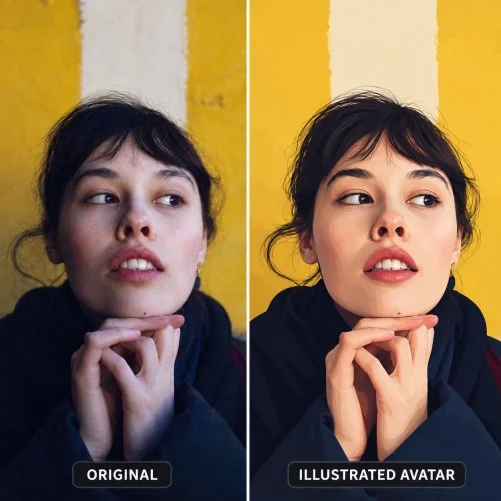
100. Professional avatar
“Turn this photograph into a clean illustrated avatar suitable for a profile picture. Simplify the details while preserving the person’s hairstyle, face shape, expression and recognisable features.”
Created with ChatGPT
Prompts for Social Media Images
Social media images often need a specific aspect ratio and clear visual focus. Mention the platform or format in your prompt instead of expecting the tool to infer it.
Instagram post
“Recompose this image into a square Instagram post. Keep the main subject centred, preserve important details and use balanced colour and contrast.”
Instagram Story
“Convert this image into a 9:16 vertical composition for an Instagram Story. Extend the background naturally and keep the main subject away from the areas normally covered by interface elements.”
Website banner
“Create a wide website banner from this photograph. Keep the subject on the left and extend the background on the right to provide clean space for headline text.”
Social media thumbnail
“Create a high-contrast thumbnail with the main subject clearly visible at a small size. Preserve the face and leave room for a short headline.”
How to Preserve Facial Identity
Facial changes are one of the most common problems in AI portrait editing. Add a clear preservation clause whenever the person’s identity matters. You can use:
“Preserve the exact facial structure, eye shape, nose, mouth, skin tone, hairstyle and expression. Keep the person clearly recognisable.”
You can also make the instruction more specific:
“Change only the background. Do not alter the person’s face, hair, clothing, pose, body proportions or expression.”
If the result changes the face, avoid immediately asking for five more edits. Instead, describe the unwanted change directly:
“Restore the original facial features from the uploaded photograph. Keep the new background, but do not change the eyes, nose, mouth, jawline or expression.”
Weak Prompt vs Strong Prompt
Weak prompt
“Make this photo look professional.”
Strong prompt
“Edit this portrait for a professional profile. Replace the cluttered background with a softly blurred light-grey studio backdrop, correct the white balance and use gentle front lighting. Preserve the subject’s exact face, hairstyle, clothing, expression and natural skin texture.”
Weak prompt
“Give me a cinematic picture.”
Strong prompt
“Apply a cinematic portrait treatment with soft side lighting, controlled shadows, warm highlights, subtle film grain and shallow background blur. Preserve the subject’s face, expression, pose and clothing.”
Weak prompt
“Remove the background.”
Strong prompt
“Remove the background and create a transparent PNG with clean edges around the hair and clothing. Avoid white halos and preserve the subject’s colours, shape and fine details.”
Common Mistakes to Avoid
Asking for too many changes at once
Large, complicated instructions can produce unpredictable results. Start with composition or object removal, then move to clothing, lighting and colour.
Using vague words
Words such as “perfect,” “beautiful” and “professional” are subjective. Explain what those words mean visually.
Forgetting preservation instructions
If you do not mention the details that matter, the AI may alter them while completing another edit.
Ignoring lighting consistency
When replacing a background, ask ChatGPT to match the direction, intensity and colour of the light on the subject.
Over-retouching skin
A portrait can quickly become artificial if you ask for excessive smoothing. Use terms such as “subtle,” “natural” and “retain visible skin texture.”
Failing to check text
AI image tools may make mistakes with small labels, logos, dates and invitation wording. Check all generated text manually before publishing.
Editing sensitive images carelessly
Avoid uploading identity documents, confidential business material or private photographs unless you understand the relevant privacy and data-handling implications.
Commercial and Professional Use
ChatGPT can be useful for creating draft visuals, social media images, concept designs, product backgrounds and profile photographs. However, AI editing may not always be appropriate for high-stakes or precision-sensitive work. Consider using a dedicated editor or professional retoucher when you need:
- Exact product colours.
- Consistent edits across a large catalogue.
- Pixel-accurate hair or fur cut-outs.
- Detailed restoration of an irreplaceable photograph.
- Legally or commercially important text.
- Strict brand consistency.
- Authentic documentary or journalistic images.
For commercial work, use photographs you own or have permission to edit. Also review the current terms of the platform you are using and any client, advertising or industry requirements that apply.
Conclusion
ChatGPT can simplify many common photo-editing tasks, from background removal and portrait retouching to wedding edits, family photographs, product images and creative transformations. The most reliable results come from prompts that are precise about the requested change and equally clear about what must remain untouched. A practical workflow is to upload a good-quality photograph, request one main edit, review the result and refine it one change at a time. Use the prompt formula in this guide as a starting point, then adapt the wording to your subject, audience, platform and visual style. With consistent instructions and careful review, ChatGPT can become a useful part of a modern photo-editing workflow.
|
Join Big Tech companies with Entri’s Courses Now! |
|||||
|---|---|---|---|---|---|
| Full-Stack Web Developer | Data Science | Python Programming | |||
| Software Testing | DevOps | Data Analytics | |||
| Cyber Security | UI/UX Design | ||||
| SAP FICO Course | AI-Powered Practical Accounting Course | ||||


