What Are Static Files in Django? How to Add, Load and Collect Them
Static files in Django are the CSS, JavaScript, images and fonts that are the same for every visitor. Django manages them with the built-in django.contrib.staticfiles app. You store them in static/ folders, reference them in templates with {% static %}, and run collectstatic to gather them into one folder for production.
Static files are different from media files. Media files are uploaded by users at runtime, such as profile photos or documents. Mixing the two up is the most common reason images and stylesheets fail to load.
Static Files vs Media Files in Django
| Static files | Media files | |
| Who creates them | Developers, as part of the code | Users, by uploading at runtime |
| Examples | style.css, app.js, logo.png, fonts | Profile photos, resumes, product images |
| Settings | STATIC_URL, STATICFILES_DIRS, STATIC_ROOT | MEDIA_URL, MEDIA_ROOT |
| In templates | {% static ‘css/style.css’ %} | {{ user.photo.url }} |
| In Git? | Yes (source folders) | No |
How to Manage Static Files in Django: The Settings That Matter
| Setting | Purpose | Example |
| STATIC_URL | URL prefix for static files in the browser | “static/” |
| STATICFILES_DIRS | Extra source folders outside apps (for shared, project-wide assets) | [BASE_DIR / “static”] |
| STATIC_ROOT | Single folder where collectstatic copies everything for production | BASE_DIR / “staticfiles” |
| STORAGES[“staticfiles”] | Storage backend, e.g. for hashed filenames or cloud storage | ManifestStaticFilesStorage or WhiteNoise |
Django also looks inside every installed app’s static/ folder automatically. Namespace app files the same way as templates, as blog/static/blog/css/style.css, so two apps’ style.css files don’t collide.
Version note: since Django 4.2, the storage backend is configured with the STORAGES setting. The older STATICFILES_STORAGE setting was removed in Django 5.1, so older tutorials that use it will break on current versions.
How to Load and Link Static Files in a Django Template
Load the static tag library once at the top of each template that uses it, then link each file with {% static %}. Never hard-code /static/… paths; the tag builds the correct URL and picks up hashed filenames in production.
{% load static %}
<link rel=”stylesheet” href=”{% static ‘blog/css/style.css’ %}”>
<script src=”{% static ‘blog/js/app.js’ %}” defer></script>
<img src=”{% static ‘blog/img/logo.png’ %}” alt=”Blog logo”>
How to Collect Static Files in Django for Production
With DEBUG = True, runserver serves static files straight from the app folders and STATICFILES_DIRS. With DEBUG = False, Django stops serving them, so before deploying you:
- Set STATIC_ROOT, for example BASE_DIR / “staticfiles”.
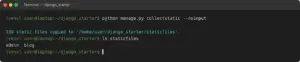
- Run python manage.py collectstatic. It copies every static file from apps and STATICFILES_DIRSinto STATIC_ROOT.
- Serve STATIC_ROOTwith your web server (Nginx location /static/), a CDN or cloud storage, or with the WhiteNoise package directly from your Django/Gunicorn process.
# settings.py (production with WhiteNoise)
STATIC_URL = “static/”
STATIC_ROOT = BASE_DIR / “staticfiles”
MIDDLEWARE.insert(1, “whitenoise.middleware.WhiteNoiseMiddleware”)
STORAGES = {
“default”: {“BACKEND”: “django.core.files.storage.FileSystemStorage”},
“staticfiles”: {“BACKEND”: “whitenoise.storage.CompressedManifestStaticFilesStorage”},
}
How to Add Static Files (CSS, JavaScript and Images) to a Django Project
You will create app-level and project-level static folders, link CSS, JavaScript and an image in a template, and prepare everything for production with collectstatic. It takes 7 steps and about 15 minutes.
Prerequisites
- A Django project with a blogapp and a template rendered by a view.
- contrib.staticfilesin INSTALLED_APPS (included by default).
- DEBUG = Truewhile developing.
Steps
Step 1: Create a namespaced app static folder
Inside the app, create static/blog/ with css, js and img subfolders.
blog/
└── static/
└── blog/
├── css/style.css
├── js/app.js
└── img/logo.png
Step 2: Add some CSS and JavaScript
Put a visible rule in style.css and a console message in app.js so you can confirm both load.
/* style.css */
body { background: #F5F8FF; }
// app.js
console.log(“Static JS loaded”);
Step 3: Add a project-level static folder (optional)
For assets shared across apps, create static/ at the project root and register it.
# settings.py
STATIC_URL = “static/”
STATICFILES_DIRS = [BASE_DIR / “static”]
Step 4: Load and link the files in your template
At the top of the template, load the tag library, then link each file.
{% load static %}
<link rel=”stylesheet” href=”{% static ‘blog/css/style.css’ %}”>
<script src=”{% static ‘blog/js/app.js’ %}” defer></script>
<img src=”{% static ‘blog/img/logo.png’ %}” alt=”Logo” height=”40″>
Step 5: Check in the browser
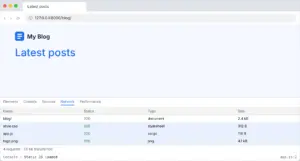
Run python manage.py runserver, reload the page and open devtools. The Network tab should show 200 responses for all three files, and the console should print the message.
Step 6: Set STATIC_ROOT for deployment
Add an output folder that is separate from your source folders, and add it to .gitignore.
STATIC_ROOT = BASE_DIR / “staticfiles”
Step 7: Run collectstatic
Copy all static files into STATIC_ROOT, ready to be served by Nginx, a CDN or WhiteNoise.
python manage.py collectstatic –noinput