How to Use Templates in Django: Create, Render and Style Django Templates
To use templates in Django, put HTML files in an app’s templates/ folder, add placeholders like {{ post.title }} and tags like {% for %}, and return them from a view with render(request, “blog/home.html”, context). Django’s template engine fills in the data, escapes it safely, and sends the finished HTML to the browser.
A Django template has three building blocks: variables ({{ user.username }}) output values, tags ({% if %}, {% for %}, {% url %}, {% static %}) add logic, and filters ({{ title|upper }}, {{ date|date:”d M Y” }}) transform output.
How Do You Create a Template in Django?
Django finds templates in two kinds of places, both configured in the TEMPLATES setting:
- Inside each app(when APP_DIRS is True, the default): blog/templates/blog/post_list.html. The repeated blog/ folder namespaces the file so two apps can each have an html.
- In a project-level folderlisted in DIRS, for example BASE_DIR / “templates”. Use it for shared files such as html and admin overrides.
mysite/
├── templates/ # project-level (add to DIRS)
│ └── base.html
└── blog/
└── templates/
└── blog/ # app-level, namespaced
└── post_list.html
Which Options Does the Django TEMPLATES Setting Accept?
Each entry in the TEMPLATES list in settings.py accepts four keys. The OPTIONS key takes backend-specific settings.
| Key | What it sets | Typical value |
| BACKEND | Which template engine to use | django.template.backends.django.DjangoTemplates (or …jinja2.Jinja2) |
| DIRS | Extra folders to search, in order | [BASE_DIR / “templates”] |
| APP_DIRS | Whether to search each installed app’s templates/ folder | True |
| OPTIONS | Engine-specific settings (see below) | {“context_processors”: […]} |
For the Django template engine, OPTIONS accepts: context_processors, debug, loaders, string_if_invalid, file_charset, libraries, builtins and autoescape. You cannot set loaders while APP_DIRS is True; choose one approach.
How Do You Render and Load a Template in Django?
Most views render a template with the render() shortcut, which loads the file, fills it with the context and returns an HttpResponse. When you need the HTML as a string, for an email or an AJAX fragment, load the template yourself:
from django.shortcuts import render
from django.template.loader import get_template, render_to_string
def home(request):
return render(request, “blog/home.html”, {“title”: “Latest posts”})
# Load a template object and render it manually
html = get_template(“emails/welcome.html”).render({“name”: “Asha”})
# Or in one call
html = render_to_string(“emails/welcome.html”, {“name”: “Asha”})
How to Use a For Loop in a Django Template
Use {% for %} … {% endfor %} to repeat markup for each item. Add {% empty %} for a fallback when the list is empty. Inside the loop, forloop.counter (from 1), forloop.first and forloop.last give position information.
<ul>
{% for post in posts %}
<li class=”{% if forloop.first %}featured{% endif %}”>
{{ forloop.counter }}. {{ post.title }}
</li>
{% empty %}
<li>No posts yet.</li>
{% endfor %}
</ul>
How Do You Add CSS to a Django Template?
Place the stylesheet in a static folder, such as blog/static/blog/css/style.css. Then load the static tag library at the top of the template and link the file with {% static %}, so Django generates the correct URL in every environment.
{% load static %}
<link rel=”stylesheet” href=”{% static ‘blog/css/style.css’ %}”>
How Do You Add, Insert or Display an Image in a Django Template?
It depends on where the image comes from:
- A fixed image you ship with the site(logo, icon): store it under static/ and use <img src=”{% static ‘blog/img/logo.png’ %}” alt=”Site logo”>.
- An image uploaded by usersthrough an ImageField: set MEDIA_URL and MEDIA_ROOT in settings and output <img src=”{{ post.cover.url }}” alt=”{{ post.title }}”>. In development, serve media by adding static(settings.MEDIA_URL, document_root=settings.MEDIA_ROOT) to urlpatterns.
Always guard optional images with {% if post.cover %}; calling .url on an empty file field raises an error.
How to Add a Background Image in a Django Template
In a CSS file served as a static file, use a path relative to the CSS file: background-image: url(“../img/hero.jpg”);. Inside the template itself, use the static tag in an inline style:
{% load static %}
<section class=”hero” style=”background-image: url(‘{% static ‘blog/img/hero.jpg’ %}’);”>
How to Override or Change the Django Admin Template
For simple branding, no template is needed: set admin.site.site_header = “My Blog Admin” and admin.site.site_title in admin.py. For layout changes, override the admin’s own templates:
- Make sure your project-level templatesfolder is in DIRS.
- Create templates/admin/base_site.html(same path as the original inside django/contrib/admin/templates).
- Start it with {% extends “admin/base.html” %}and override only the blocks you need, such as {% block branding %} or {% block extrastyle %}.
- To change one model’s pages only, use a path like templates/admin/blog/post/change_form.html.
How to Use AJAX in Django Templates
Write a view that returns JsonResponse, then call it from the template with fetch(). For POST requests, read the CSRF token from the cookie or from a {% csrf_token %} field and send it in the X-CSRFToken header.
<button id=”like” data-url=”{% url ‘blog:like’ post.pk %}”>Like</button>
<script>
document.getElementById(“like”).addEventListener(“click”, async (e) => {
const token = document.querySelector(“[name=csrfmiddlewaretoken]”).value;
const res = await fetch(e.target.dataset.url, {
method: “POST”, headers: { “X-CSRFToken”: token } });
const data = await res.json();
e.target.textContent = `Liked (${data.likes})`;
});
</script>
How to Create a Base Template and Render a Styled Page in Django
You will configure template folders, build a reusable base.html with Bootstrap, extend it in a page template, loop over data, and add your own CSS and an image. It takes 7 steps and about 20 minutes.
Prerequisites
- A Django project with a blogapp and a working view (see the Django Views tutorial).
- contrib.staticfilesin INSTALLED_APPS (it is there by default).
- Basic HTML and CSS.
Steps
Step 1: Configure the template folders
In settings.py, add a project-level folder to DIRS and keep APP_DIRS as True.
TEMPLATES = [{
“BACKEND”: “django.template.backends.django.DjangoTemplates”,
“DIRS”: [BASE_DIR / “templates”],
“APP_DIRS”: True,
“OPTIONS”: {“context_processors”: [
“django.template.context_processors.request”,
“django.contrib.auth.context_processors.auth”,
“django.contrib.messages.context_processors.messages”,
]},
}]
Step 2: Create base.html
Create templates/base.html with Bootstrap from a CDN and named blocks.
{% load static %}
<!doctype html>
<html lang=”en”>
<head>
<title>{% block title %}My Blog{% endblock %}</title>
<link rel=”stylesheet” href=”https://cdn.jsdelivr.net/npm/bootstrap@5.3.3/dist/css/bootstrap.min.css”>
<link rel=”stylesheet” href=”{% static ‘blog/css/style.css’ %}”>
</head>
<body class=”container py-4″>
{% block content %}{% endblock %}
</body>
</html>
Step 3: Extend it in a page template
Create blog/templates/blog/post_list.html.
{% extends “base.html” %}
{% block title %}Latest posts{% endblock %}
{% block content %}
<h1>Latest posts</h1>
{% endblock %}
Step 4: Loop over data
Inside the content block, loop over the posts context variable sent by the view.
{% for post in posts %}
<div class=”card mb-3″><div class=”card-body”>
<h2 class=”h5″>{{ post.title }}</h2>
<p>{{ post.body|truncatewords:25 }}</p>
</div></div>
{% empty %}
<p>No posts yet.</p>
{% endfor %}
Step 5: Render it from the view
Return render(request, “blog/post_list.html”, {“posts”: posts}) from the view and open the page in the browser.
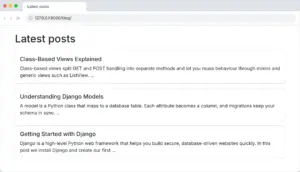
Step 6: Add your own CSS
Create blog/static/blog/css/style.css (for example h1 { color: #1F6FEB; }). It is already linked in base.html. Hard-refresh the browser to see it.
Step 7: Add an image
Save a logo to blog/static/blog/img/logo.png and add <img src=”{% static ‘blog/img/logo.png’ %}” alt=”Blog logo” height=”40″> above the heading.