
Table of Contents
Introduction
If your iPhone started feeling sluggish after updating to iOS 26, you’re not alone. Many users; especially on older models like iPhone 13, 14, 15, and 16, report lag, stuttering animations, and slower app launches after the update. The good news: most of this is temporary or fixable with a few targeted settings changes. Below is a practical, step-by-step guide (inspired by popular tech walkthroughs) to help you speed up your iPhone without losing data.
Why iOS 26 Can Feel Slower on Older iPhones
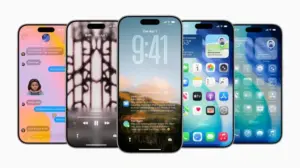
iOS 26 introduces heavier animations, a new “Liquid Glass” visual style, and background AI/indexing tasks that demand more from your processor and GPU. On newer Pro models, this is barely noticeable—but on devices with older chips or degraded batteries, it can cause visible lag. Apple also confirms that after major updates, iPhones run intensive background tasks (like Spotlight re-indexing and photo optimization) for 24–48 hours, which temporarily reduces performance—especially if the device isn’t plugged in or on Wi-Fi.
Step-by-Step Fixes to Speed Up iOS 26
Follow these steps in order. Most take under 2 minutes and require no data loss.
1. Turn off the Glass Renderer
Settings → Accessibility → Display & Text Size → Reduce Transparency (turn ON) All the transparent menu that you see is being powered by the GPU. By switching it off, you reduce the load on the GPU, leading to a decrease in the overheating issue.
2. Toggle off Apple Intelligence
Location: Settings > Apple Intelligence and Siri > Toggle off Apple Intelligence and Siri quietly scane your photo library and uses heavy processing power in the background for hours after the update is installed.
3. Kill Motion Animations
Settings → Accessibility → Motion → Reduce Motion (turn ON) With the new iOS 26 update, animations are more heavier with almost every app utilising it. This is the lag that feel every time you open apps as it consumes almost 200-300 millliseconds of the CPU on every single tap.
4. Stop the Bluetooth Beacon
Location: Settings > Privacy & Security > Location Services > System Services > Turn off Journaling Suggestions This feature was pinging Bluetooth 24/7 for a feature that is reeally not used by anyone.
5. Wait 24–48 Hours (Let iOS Finish Background Work)
After a major update, iOS performs heavy background tasks like:
- Rebuilding Spotlight search index
- Re-optimizing photos and videos
- Updating app caches and system files
What to do: Leave your iPhone plugged in, connected to Wi-Fi, and unused (screen off) overnight. This lets iOS complete indexing faster and reduces daytime lag.
💡 Tip: If you updated just before bed, do this step first before tweaking any settings.
6. Free Up Storage (Aim for 10–20% Free Space)
When storage is over 85% full, iOS throttles performance to manage memory and caching. Check and clean storage:
- Go to Settings → General → iPhone Storage
- Delete unused apps, old message attachments, or large videos
- Offload photos to iCloud or a computer
- Aim for at least 10–15 GB free (or 10–20% of total capacity)
7. Turn Off Background App Refresh
Background App Refresh lets apps update content in the background—but it also drains CPU and battery. Disable or limit it:
- Go to Settings → General → Background App Refresh
- Choose Wi-Fi Only or turn it Off entirely
- Or disable it per app (keep it on only for essential apps like WhatsApp or Mail)
8. Update All Apps
Outdated apps may not be optimized for iOS 26, causing crashes or lag. Update apps:
- Open App Store → Tap your profile icon → Update All
- Let all pending updates finish before testing performance again
9. Why Your iPhone Stops Charging at 80% (It’s Normal)
If your iPhone halts at 80% and displays a message like “Charging on Hold – Battery Temperature Too High,” don’t panic. This isn’t a malfunction. Apple intentionally pauses charging when the battery gets warm to protect its long-term health. Once the device cools down, say, by moving it off a pillow, away from direct sunlight, or out of a hot car; charging automatically resumes. There’s another common reason for the 80% pause: Optimized Battery Charging. This feature learns your daily routine and deliberately holds the charge at 80% overnight, then tops it off to 100% just before you typically wake up. It’s designed to reduce battery aging caused by staying at full charge for extended periods. In both cases, there’s no damage occurring. These safeguards exist to extend your battery’s lifespan, not to indicate a problem. Let your iPhone manage the charge – it knows what it’s doing.
Should You Avoid iOS 26 on Older iPhones?
Not necessarily. iOS 26 brings important security patches, AI features, and Apple Watch compatibility. For most users, the performance dip is temporary or manageable with the steps above. If your iPhone is 5+ years old and already showing battery wear, however, weigh the benefits against potential slowdowns—and consider a battery replacement before updating.
Final Thoughts
iOS 26 isn’t “breaking” older iPhones—it’s just asking more from them. With a few smart tweaks (especially reducing motion, freeing storage, and letting background tasks finish), you can keep your device smooth and secure without rushing to upgrade. Try these steps in order, and you’ll likely see a noticeable improvement within 1–2 days. If you’re still facing issues after a week, a clean restore or battery check is your best next move.
Found this helpful? Share it with someone whose iPhone slowed down after iOS 26!
|
Join Big Tech companies with Entri’s Courses Now! |
|||||
|---|---|---|---|---|---|
| Full-Stack Web Developer | Data Science | Python Programming | |||
| Software Testing | DevOps | Data Analytics | |||
| Cyber Security | UI/UX Design | ||||
| SAP FICO Course | AI-Powered Practical Accounting Course | ||||
Frequently Asked Questions
Is iOS 26 safe to install on older iPhones like iPhone 13 or 14?
Yes. iOS 26 is officially supported on iPhone 13 and newer models, including iPhone 14, 15, and 16. While some users report temporary slowdowns after updating, these are usually caused by background indexing or visual effects—not hardware incompatibility. Following the optimization steps in this guide can restore smooth performance.
Why does my iPhone feel slower after updating to iOS 26?
iOS 26 introduces more demanding features like the “Liquid Glass” interface, heavier animations, and background AI tasks (including Apple Intelligence scanning your photo library). These place extra load on the GPU and CPU—especially noticeable on non-Pro models or devices with aging batteries. Apple also confirms that performance may dip for 24–48 hours post-update due to system re-indexing.
Does turning off “Reduce Transparency” really help with lag?
Yes. The transparent menus and blur effects in iOS 26 are rendered by the GPU. Enabling Reduce Transparency (Settings → Accessibility → Display & Text Size) removes these visual layers, reducing GPU strain and helping prevent overheating and stutter—particularly on older chips.
Should I disable Apple Intelligence to improve speed?
If you’re not actively using Apple Intelligence features (like smart photo search or contextual Siri suggestions), turning it off can free up significant background processing power. Go to Settings → Apple Intelligence and Siri and toggle it off. Many users report smoother performance after disabling it, especially right after a major update.
What does “Reduce Motion” do, and why is it recommended?
“Reduce Motion” disables or simplifies iOS animations (like app zooms, parallax effects, and transition slides). Since iOS 26 uses heavier animations across nearly every app, disabling this feature can save 200–300 milliseconds per interaction—making your phone feel noticeably snappier. Find it under Settings → Accessibility → Motion → Reduce Motion.
Is “Journaling Suggestions” really draining my battery?
Yes. This underused feature constantly pings nearby Bluetooth devices to suggest journal entries, even if you never open the Journal app. Disabling it (Settings → Privacy & Security → Location Services → System Services → Journaling Suggestions) stops unnecessary background activity and can improve both battery life and responsiveness.
How long should I wait before expecting normal performance after updating?
Apple recommends waiting 24–48 hours after a major iOS update. During this time, your iPhone rebuilds Spotlight indexes, re-optimizes photos, and updates system caches—all while plugged in and on Wi-Fi. Performance typically stabilizes once these background tasks complete.
How much free storage do I need to avoid slowdowns?
Keep at least 10–15 GB free (or 10–20% of total capacity). When storage exceeds 85% usage, iOS throttles performance to manage memory and caching. Regularly delete unused apps, old message attachments, and large videos—or offload media to iCloud or a computer.
Is it normal for my iPhone to stop charging at 80%?
Absolutely. There are two common reasons:
- Temperature protection: If the battery gets warm (e.g., from being on a bed or in sunlight), iOS pauses charging until it cools.
- Optimized Battery Charging: iOS learns your routine and holds charge at 80% overnight, topping off to 100% just before you wake up.
Both are intentional safeguards to preserve long-term battery health—not signs of damage.
Will turning off Background App Refresh delete my app data?
No. Disabling Background App Refresh only stops apps from updating content in the background. Your messages, emails, and app data remain intact. You’ll simply need to open apps manually to refresh their content—which also saves battery and CPU cycles.